Add and edit every DNS record type NameBright supports, change your nameservers, set up subdomains and URL forwarding, and turn on DNSSEC.
Understand Your DNS Zone File
GUIDE-7.1 · 1 min · Updated September 2026
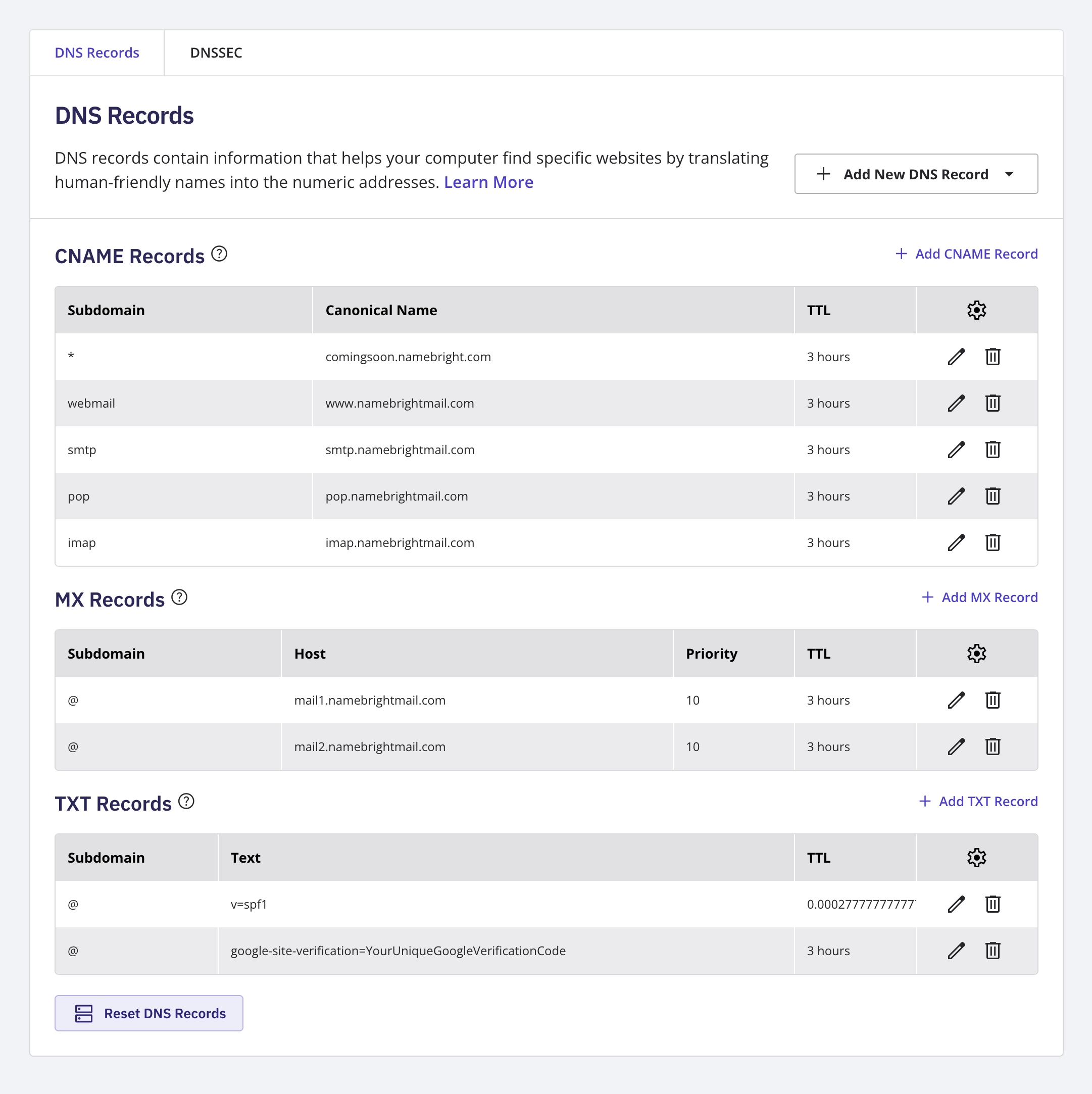
Before you add, edit, or delete anything, it helps to know where NameBright keeps your domain's DNS records. Your zone file is the complete set of DNS records for a domain, and NameBright manages it from one screen.
Log in to your NameBright account.
Go to Domain Manager and select a domain.
Under the DNS section, select Manage DNS Records .
Review the list. Each row is one record: its type (A, AAAA, CNAME, MX, NS, TXT, or SRV), host, value, and TTL.
Select Add New DNS Record to create one, or select an existing record to edit or delete it. The rest of this section walks through each record type.
You must be using NameBright's nameservers to manage DNS records through NameBright. Otherwise, whoever manages the nameservers for your domain also controls DNS resolution, and records set in NameBright won't take effect. See Change a Domain's Nameservers.
To manage DNS records for a category, go to My Categories , select a category, open Category Settings , and enable DNS Records there, then follow the steps above.