Move a domain to or away from NameBright, transfer in bulk, move domains between two NameBright accounts, and resolve a stalled or rejected transfer.
Get Your Domain's Auth Code
GUIDE-5.1 · 1 min · Updated September 2026
Your domain needs to be unlocked before its auth code is visible. See Unlock a Domain for Transfer if you haven't done that yet.
Log in to your NameBright account.
Go to Domain Manager and select a domain.
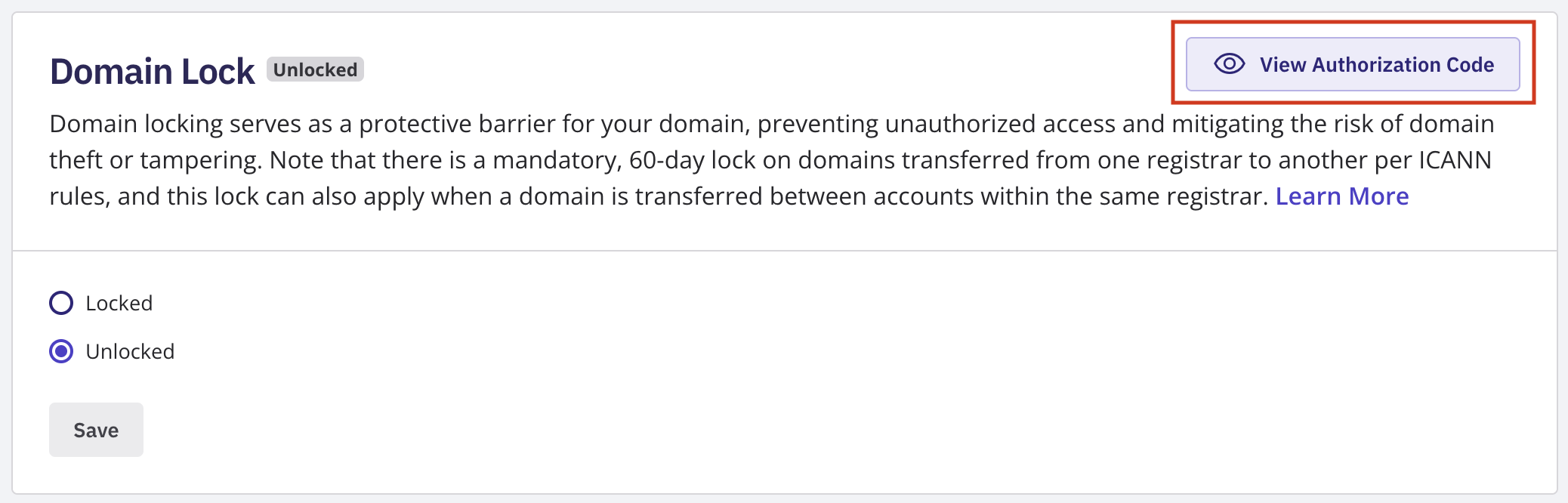
Under the Domain Lock section, select Manage Domain Lock .
If the domain isn't already unlocked, toggle it off, then select View Auth Code .
Copy the code exactly as shown. Treat it like a password — anyone with your auth code and access to your email can initiate a transfer.
You can generate a new auth code from the same screen if you need to reset it.
Download Auth Codes in Bulk
To download auth codes for multiple domains at once, go to Domain Manager , switch to Advanced view, and select the domains you want. Once at least one is selected, the bulk action buttons above the domain table become active. Select the Auth Codes bulk action button, then select Download Auth Codes .