Manage a Domain's Contact Information

GUIDE-4.1 · 1 min · Updated September 2026

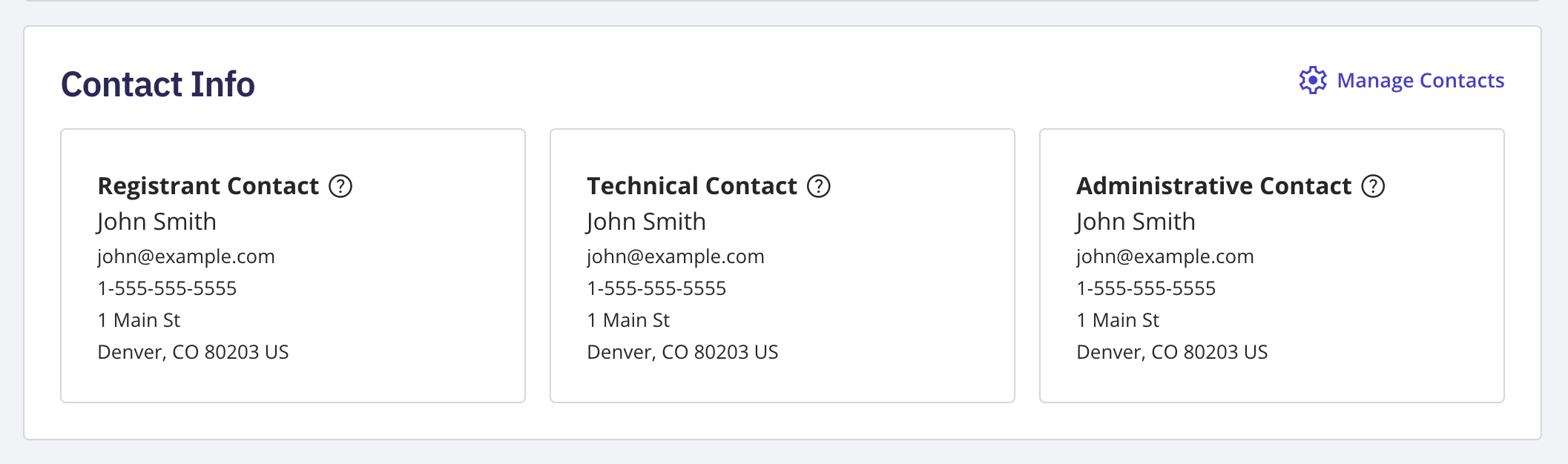
Each domain has three WHOIS contact cards: Registrant , Technical , and Administrative .

  1. Log in to your NameBright account.

  2. Go to Domain Manager and select a domain.

  3. Select the Contacts section.

  4. Edit the Registrant, Technical, or Administrative contact card as needed.

  5. Save your changes.

The Contacts section of a domain showing the Registrant, Technical, and Administrative contact cards

Manage Contact Info in Bulk

To edit contact information on multiple domains at once, go to Domain Manager , switch to Advanced view, and select the domains you want to update. Once at least one is selected, the bulk action buttons above the domain table become active. Select the Contact Info bulk action button, edit the setting the same way you would for a single domain, and save.

Manage Contact Info for a Category

To set contact information for every domain in a category at once, go to My Categories , select the category, open Category Settings , and enable Contact Info as a category setting, then edit the setting the same way you would for a single domain.

Related