Create categories, move domains into them, and apply shared settings to a whole category at once.
Apply Shared Settings to a Whole Category
GUIDE-10.3 · 1 min · Updated September 2026
A category isn't just a label. Several account settings can be set once at the category level and apply automatically to every domain inside it: Auto-Renew, Contact Info, DNS Records, Domain Lock, Email, Email Forwarding, Nameservers, Privacy Protection, and URL Forwarding. Category History is also available, as an audit log rather than a setting.
Each of these settings is off at the category level by default, even for an existing category, and turning one on is a separate step from editing it:
Go to My Categories and select the category.
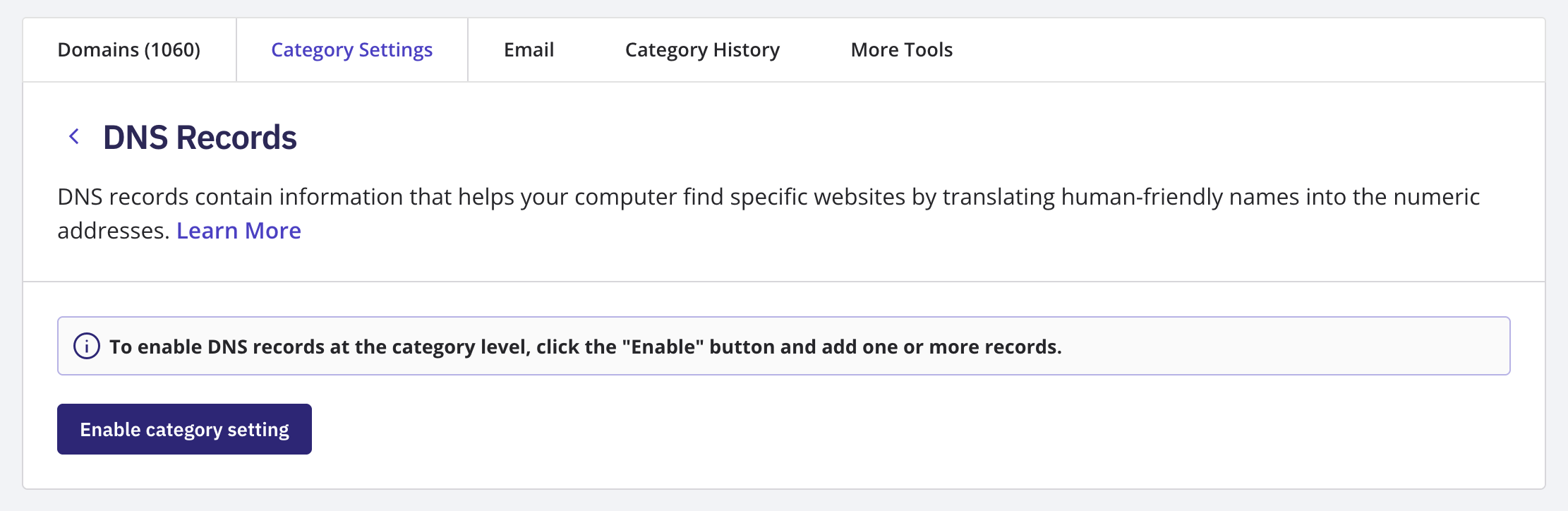
Open Category Settings and choose the setting you want to manage — for example, DNS Records or Nameservers.
Select Enable to turn that setting on for the category.
Once it's enabled, edit the setting's values and save. The change applies to every domain currently in the category, with no need to repeat it domain by domain.
This is a different tool from the bulk actions in Domain Manager (see Bulk-Edit Domain Settings and Renew a Domain Manually). A bulk action applies a one-time change to whichever domains you select, in or out of a category. A category setting stays in force for every domain in that category going forward.